Answers to the most frequently asked questions about Co Agendas - even before you download.
Getting started
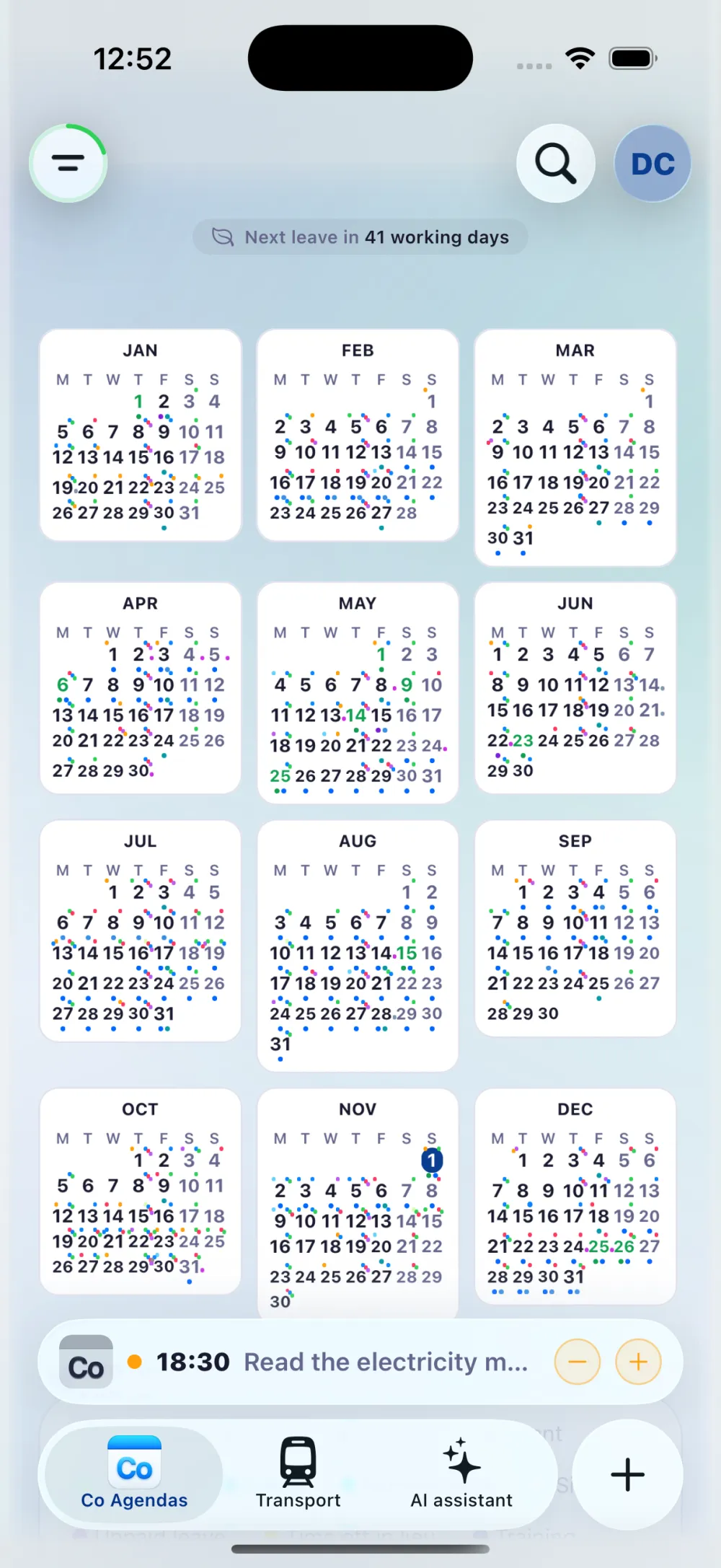
Everything starts from the month
This is the home screen: the dots, the weather, the legend, and the day right below.
A question?
Ask the assistant
It knows the app and answers in one sentence. Your requests stay on your device.
Settings
Everything can be set
Theme, colours, text size, halo and background tint, the way you leaf through: everyone gets their own calendar.
Sharing
What gets shared, and what stays private
Each status has its own switch, and your events marked “do not share” never leave.
On video
Learn in 30 seconds
Short videos, without commentary, showing the gestures. The app is translated into your seven languages; the videos themselves are recorded in French or English - each capsule says which, and the steps are written in your language.
The essentials
What is Co Agendas ?
Co Agendas is a calendar for residents and cross-border commuters: leave, public holidays, school holidays from seven countries and public transport. It brings together in one place the holidays and school breaks of Luxembourg, France, Belgium, Germany, the Netherlands, Switzerland and Italy, your leave and remote work, a bridge-day planner, the weather and train alerts.
Is Co Agendas free ?
Yes, the essentials are free forever and ad-free: multi-country calendar, public holidays of the 7 countries, weather, leave management, school holidays of one country (up to 3 zones), disruption alerts for one network, dark mode and 7 languages. The Plus plan notably adds the bridge-day planner, the real-time journey, the AI assistant, statistics, school holidays of the 7 countries, widgets and the Apple Watch, and more storage (1 GB instead of 50 MB). Details on the Pricing page.
Which countries are covered ?
Seven countries: Luxembourg, France, Belgium, Germany, Netherlands, Switzerland and Italy. Public holidays are available for each one, and school holidays by zone: France A, B and C, Belgium (Flemish Community and Wallonia-Brussels Federation), Saarland and Rhineland-Palatinate, Netherlands North, Central and South, the cantons of Basel, Geneva and Vaud, Lombardy, Piedmont and Liguria, and Luxembourg's national calendar. You can display up to 3 zones at the same time: from a single country with the free version, from several countries with the Plus plan.
On which devices does the app work ?
The app is available on iPhone (App Store) and also runs on iPad and on Mac (Macs with Apple silicon); Android (Google Play) will follow. Your data syncs automatically from one device to another as soon as you are signed in to the same account.
In which languages ?
Seven languages: French, English, German, Portuguese, Dutch, Luxembourgish and Italian. You can choose yours on the very first screen (the flag at the top right), then in the getting-started guide, together with your work and home countries; you can change it at any time in My Account, “Language”.
Do I need an account ?
Yes, to secure your data and sync it across devices. Creating one is instant: with your e-mail and a password, or password-free with Sign in with Apple (on iPhone), a Google account or a sign-in link received by e-mail. If you choose a password, confirm your address from the e-mail you receive, within 30 minutes.
What is the AI assistant?
It reads your calendar and suggests; it never writes on its own. Every suggestion appears as a card and you confirm it with one tap. It can tell you what a day or a week holds, count the leave you have booked and the days you have left, create an event or a reminder, book time off, look up a journey. Nothing is saved without your consent. The assistant is included in the Plus plan, as well as during the free trial.
Where are my conversations with the AI assistant kept?
Only on your device. They are not sent to our servers: so they do not appear on your other devices, and they are erased if you delete the app. To keep a conversation, share it from the assistant’s Recent tab. Your saved requests (“My requests”) follow your account.
Are there videos to learn how to use it?
Yes, short clips show the gestures, one per topic. In the app: My account, then "Learn". The video plays right there, without leaving the app, and each clip comes with its steps in writing. The assistant also offers you the right clip when your question has one.
Can I switch the app to dark mode?
Yes. My account, then "Appearance": light, dark, or the system setting, which follows your iPhone automatically. The theme changes immediately, on every screen.
Gestures and shortcuts
Which gestures work in every calendar view?
Swipe sideways to go to the previous or next period (year, month, week or day).
Pull the list down to refresh it.
Tap the Co Agendas tab to go back to today; tap it twice in a row, in Month or Day view, to open the day sheet.
Tap the Transport tab twice to bring the banner back to the next departure (iPhone with iOS 26).
With the Plus plan, choose the page-turn animation (card, page, cube...) in My account, “Calendar page turn”.
Which gestures in Month view?
Long press on a day: adds a full day of leave; another long press removes it. Nothing happens on a public holiday.
Double tap on a day: new reminder on that date (Plus).
In landscape, pinch to see two months side by side, spread to go back to one.
Below the calendar, on an event: swipe left to delete it (with confirmation), right to edit it; a long press opens its menu.
On a reminder: swipe left to delete it (“Undo” stays available for a few seconds), right to open it.
In the day’s hourly view, a long press on a free hour creates an event at that time.
On a reminder’s “−” and “+” buttons, quick repeated taps speed up: 5 minutes, then 10, then 30.
Which gestures in Day view?
Double tap on a free hour: reminder at that time (Plus).
Long press on a free hour: new event at that time.
Long press on an event, then drag: it moves in 15-minute steps. Two circles appear: drag them to change the start or the end.
Swipe an event left to delete it (“Undo” stays available for a few seconds), right to edit it; tap it to open its menu.
Hourly agenda: tap a reminder’s pill to open its menu (View, Who sees it?, Edit, Share, Delete); a long press on a line of the Reminders card opens the same menu. “Share” first offers your Co Agendas contacts (they receive an invitation to follow the reminder), then your phone’s share sheet.
Which gestures in Week view?
Spread or pinch to show more or fewer days, from 1 to 14 (Plus).
Long press on a free slot, then drag: a draft follows your finger; let go to create the event on that day and at that time.
Double tap on a free slot: reminder (Plus).
Long press on a day’s header: menu to add an event, a reminder or a status.
Long press on an event, then drag to change its time or day; at the edge of the screen it moves to the next week. Drag its bottom circle to the right to stretch it over several days.
Long press on a reminder, then drag to move it.
Tap the top-left corner to go back to today.
Which gestures in Year view?
Spread to show 2 months per row, pinch for 3.
Tap a month or a day to open it in Month view.
Which gestures in the day sheet, the event form and the planner?
Day sheet: swipe sideways to go to the previous or next day.
“+” pop-up: swipe the card to change the date.
New event: swipe the date chip to move forward or back one day.
Form: tap the time, like the date, to open the time line. Drag a circle to set the start or end to the minute, or the middle of the bar to move the whole event: what you hold lights up.
Keep your finger against the left or right edge of the line: the day scrolls.
Tap elsewhere in the form to close the date or time; the form scrolls by itself to show what opens.
Planner: long press on “See ... days” for a period already booked to remove its leave.
Event menu: long press on a booking to copy its reference number.
Day sheet: long-press the expanded details of an event to copy all its information; a long press on a reminder copies it. A message at the bottom confirms it.
Which gestures for shared calendars and photos?
Long press on someone else’s event: menu with “Copy to my calendar”.
Long press on an event from your phone’s calendar that has a place: directions.
Photos: swipe to see the next one, pinch to zoom (iPhone), swipe down to close.
Which gestures in the AI assistant and Transport?
Assistant: long press on a saved request, then drag to change the order; swipe left to delete it, right to edit it.
Assistant: long press on a message to copy it.
Transport: swipe a recent trip left to remove it (“Undo” stays available for a few seconds).
Transport: in “Departure”, drag the circle on the time line; the search starts when you lift your finger.
Favourites (trips, stations, assistant requests): long press, then drag to reorder them.
Transport: tap the first row of the timetable (car, on foot or bike) to expand it on its map; “Enlarge” opens the journey full screen, with its two tabs and the steps to follow.
Transport: expand “Preferred modes”, then “Compare with” to choose Car, On foot, Bike or None.
Event with a place: in its menu, “Remind me to leave”, tap a mode to set the departure reminder; tap it again to remove it.
Which gestures in My account and documents?
Swipe from the left edge of the screen to go back to the previous page (on Android: the system Back gesture or button).
Contact card: long press on a group to rename or delete it.
Documents: long press on a folder to rename or delete it; long press on a document to select it (several at once with the Plus plan).
Three-line button: drag a row’s handle to reorder the blocks of the Day and Month views.
Which shortcuts on the app icon?
Long press on the Co Agendas icon: AI assistant, Public transport, Today, Report a problem.
Long press on a widget, then “Edit Widget”: accent colour, calendars shown and the widget’s other settings.
On a reminder notification (long press, or on the wrist): “Done” ticks it without opening the app, “In 5 min”, “In 10 min” or “In 1 h” postpones it.
Which gestures in the widgets (iPhone)?
Everything happens in the widget, without opening the app.
Day agenda: tap a day in the mini month to show it; the chevrons change month; the arrows go to the previous or next day, “Today” comes back to it; “See other events” scrolls through the day.
On a reminder or an event: “−” and “+” shift it by 5 minutes, the tick marks it done (tap again to undo).
The status chip opens the list of statuses: tap one to set it on the day.
Next trains: tap a train to see its stops; the arrows scroll through the journey, “Back” returns to the list; the thumbs say whether a report is accurate.
Tap elsewhere in a widget to open the app at the right place.
Which gestures on the Apple Watch?
Turn the Digital Crown to change month; tap a day to see its agenda, and the month name to go back to today.
Pull the list down to refresh departures.
On an event or reminder: “+” and “−” shift it by 5 minutes, the tick marks a reminder done; tap the row for its details (end time, last day if it lasts several days, description).
Status: tap it to choose one, with the half-day option.
Tap a departure to see the full journey; “Reverse”, “My journeys” and “Modes” change what you are looking at.
Tap the disruption banner for the list of notices, and a report to say, with the thumbs, whether it is accurate.
Assistant: tap a saved or recent request, or dictate your question.
Top left, the arrow goes back and the Co Agendas icon brings you home.
Smart Stack: the next-departure complication rises by itself in the hour before your train.
At the top of the departures: tap the car row (or on foot, by bike) for its map, its times and “Go”.
Which gestures in task and shopping lists?
Press and hold, then drag: move a task or an item; dropped under another shop, it changes shop (and aisle if the list is grouped by aisle). The page scrolls when your finger reaches the edge.
Swipe right: edit (opens the task or item; on a group list, renames it in place).
Swipe left: delete (a deleted list goes to the trash in My account).
Subtasks and the group’s lists are arranged the same way.
Tap the circle to tick, the line to open its details.
And on Android?
The gestures of the calendar, the sheets, the assistant and Transport are the same as on iPhone.
The system Back gesture or button replaces the swipe from the left edge.
Long press on the Co Agendas icon: the same four shortcuts, without icons.
Day agenda widget: the arrows go to the previous or next day, the Today button comes back to it; tap an event or a free day to open the app.
iPhone only for now: the double tap on the Transport tab, photo zoom, the Next trains widget and the watch.
School holidays & public holidays
Holidays and public holidays of 7 countries, overlaid - combined with your leave, over the month or the whole year. See in pictures →
How do I choose my country and zone ?
In My Account, “Profile and location”: choose your country of work (it sets your public holidays and the leave calculation) and, if needed, your country of residence. Then, in “School-holiday country”, tick up to 3 zones, for example France A, B or C, or the canton of Geneva. The calendar adapts automatically.
Are the displayed dates official ?
They come from official public data: public holidays set by each country's law, school holidays published by education ministries, regions and cantons, and deadlines published by the administrations. They are provided for guidance: check an important date with the official source before planning an absence.
Can I display several countries at once ?
Yes. If you live in a different country from the one where you work, the public holidays of both countries are displayed; those of your country of work are used to calculate leave. For school holidays, you can display up to 3 zones at the same time: from a single country with the free version, from several countries (for example your children's school in one country and your work in another) with the Plus plan.
A date looks incorrect ?
Write to us via the contact form, stating the country, zone and date: we check and correct it quickly.
Leave, bridge days & absences
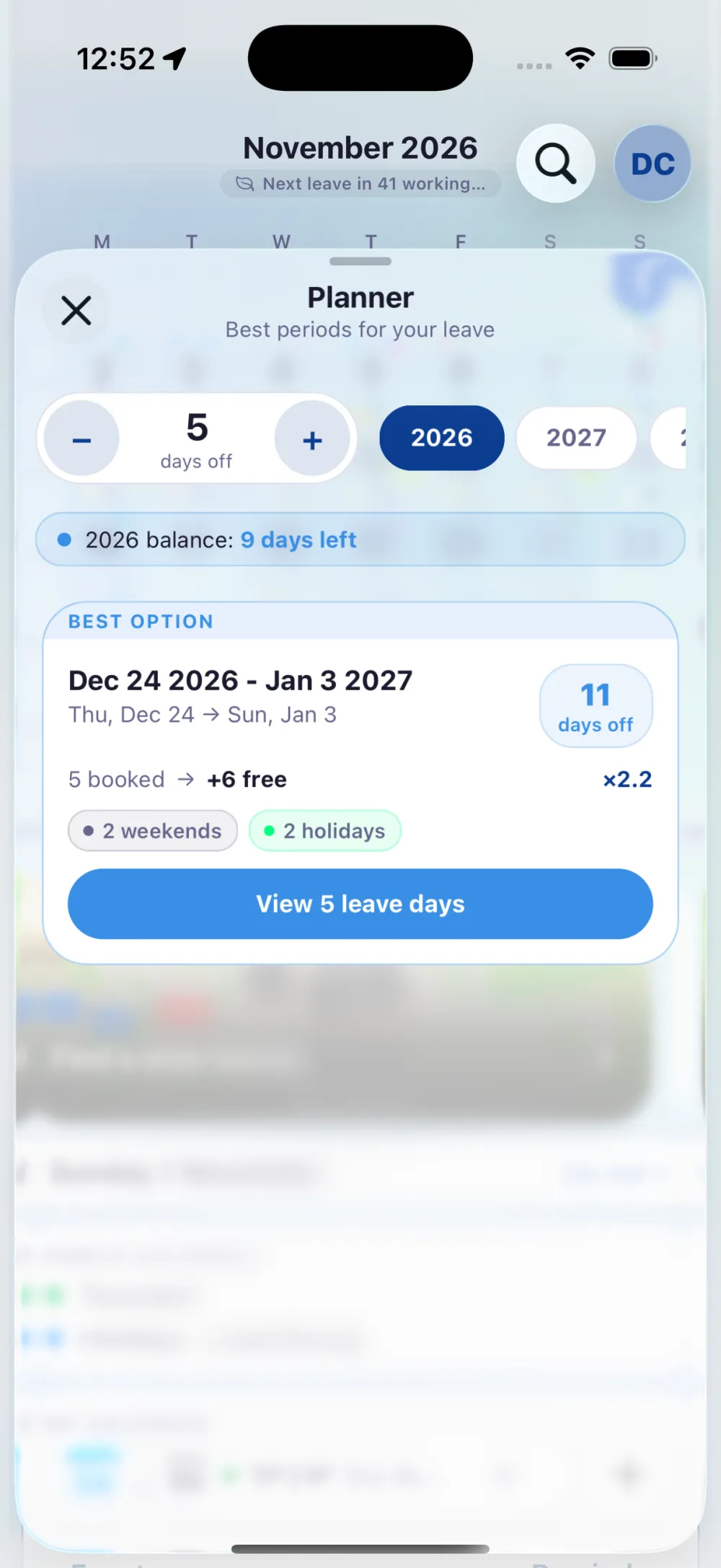
Book 5 days, take 10 off. The planner combines public holidays, weekends and your balance to find the best bridge days. See in pictures →
How do I calculate my leave days ?
Select a date range: the app counts the days, automatically excluding the public holidays of your country of work, across your actual working days. You see the real number of leave days used, half-days included.
What is the bridge-day planner ?
It spots bridge days from the public holidays of your country of work and shows you where to book your leave to turn a single day off into an extended weekend - with the multiplier displayed (e.g. 3 booked = 6 days off). You optimize your bridge days before everyone else. (Plus plan.)
Which absence types can I mark ?
Seven types: leave, remote work, sick leave, unpaid leave, time off in lieu, training and mission / travel. Each type has its own colour (customizable with the Plus plan), can be set as a full day or half-day, and is filterable with a tap on the legend. The counters update automatically.
How do I track my remote work ?
Remote work is one of the available statuses: set it day by day, as a full day or half-day, with its dedicated counter, to keep an eye on your days for the year. If you live in a different country from the one you work in, it also shows your limit (e.g. 34 days); if you live and work in the same country, it simply counts your days, with no limit. The calendar's “Range” mode only books leave; to set remote work over several days at once, ask the assistant (Plus plan).
Trains & weather
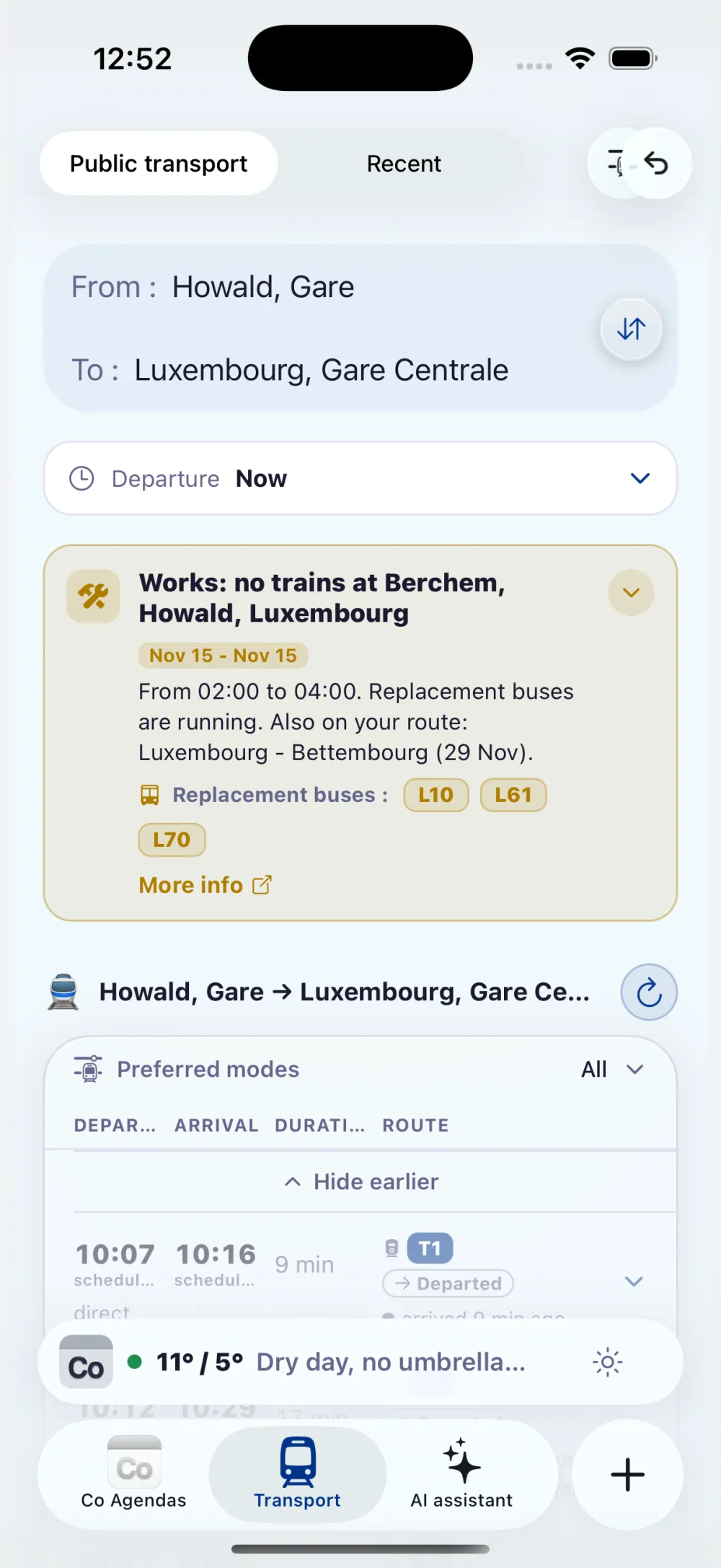
Your train, watched for you. The disruptions on your line, only on the days you take the train. See in pictures →
How do the train alerts work ?
Turn on “Alert me about disruptions” and choose your networks: the app warns you about strikes and disruptions as soon as they are published. With the Plus plan, you also enter your route and the days you take public transport: the alerts are then targeted on YOUR line, and only on those days - no needless noise. (Free plan: a single network monitored, every day. Alerts cover the main networks of Luxembourg and its neighbouring countries; some networks are display-only.)
Why is real-time data not always shown ?
The departure platform and the delay to the minute are not produced by Co Agendas: they depend on what the transport networks broadcast live. That broadcast is limited, uneven from one line, stop or time of day to the next, and entirely beyond our control. When live information does not exist, the app shows the scheduled times and tells you so clearly. Real-time is therefore extra information shown when it is available, never a guarantee on every journey. Before an important journey, always check with the operator. Learn more
What is the scheduled commute ?
The live banner on your lock screen turns on by itself before your train, morning and evening, without you having to open the app. You set it up in the Transport tab (bottom bar), with the settings button at the top right, “Scheduled commute” section - also reachable from My Account > “Profile and location” > “My home - work commute”. There you set one habit per weekday (an outward trip with the arrival time you want, a return trip with its departure time) and, when your plans change, an exception on a specific date, which applies to that day only without altering your habit. The banner opens 45 minutes before departure by default (30 or 60 if you prefer) and shows the countdown to departure, then the platform and the delay once they are known. A preview of the next 7 days shows you in advance which days it will turn on, and which days it will stay off. If the selected journey starts with a bus or a tram, the banner does not turn on and the app tells you so. (Plus plan, on iPhone.)
Does the banner also turn on when I am not working ?
No, and that is exactly the point: the scheduled commute reads your calendar before deciding. The banner stays off on your days of leave, sick days or other absences, your remote-work days, the public holidays of your country of work and the days that are not working days in your contract. A half-day does not switch it off: you travel anyway. Your explicit choices come first: if you tick Saturday in your usual week, it turns on that Saturday, and a trip you set by hand on a specific date turns on even on a public holiday or a day of leave (on-call duty, a business trip, a delayed return from holiday) - the app then tells you that it is scheduled as an exception.
Do I have to leave the app open for the banner to turn on ?
No, on an iPhone running iOS 17.2 or later. The banner turns on by itself even when the app is completely closed: our server opens it at the scheduled time. The app does not run in the background and therefore does not drain your battery for this, and the countdown shown keeps running on its own. There is one limit, and we would rather state it plainly: on a banner opened this way the time shown is the scheduled time, and the delay only updates on it if the app has run since. Just tap the banner - the app opens and updating resumes until arrival.
What about real-time data for Luxembourg buses and trams ?
Real-time data for Luxembourg buses and trams goes through a dedicated access that the network operator has not granted us yet. We have applied for it and we cannot announce any date. In the meantime we would rather stay silent than assert: on those lines the app shows no live delay instead of writing “on time” without knowing, and the times shown remain the scheduled ones. Real-time data for trains is not affected. Consequence for the scheduled commute: a journey that starts with a bus or a tram does not turn on a banner, and the app tells you so when you set it up.
Is the scheduled commute included in the Free plan ?
No: the scheduled commute is part of the Plus plan, like transport real-time data and alerts targeted on your line. The Free plan keeps the calendar, leave, public holidays, the weather and the alerts for one network. The details are on the Pricing page.
Is the weather built in ?
Yes: the weather for the coming days (up to 10 days ahead) appears directly in the calendar cells, with the hour-by-hour detail of a given day (temperature, feels-like, chance of rain, wind). You can also check the weather for another city: it then stays close at hand in “Recent”.
Can I follow my train without unlocking my phone?
Yes, on iPhone and with the Plus plan. In a journey, tap “Track this journey”: your train then stays live on the lock screen and in the Dynamic Island, with the platform, the delay, the next stop and the arrival time. You see all of it without unlocking your phone, and the display ends by itself on arrival. Tracking starts at the earliest 24 h before departure, and the banner appears 2 h before by default (setting “Open before departure”, up to 4 h); to share it with a contact, the banner opens at the earliest 4 h before. The next stop moves forward at each station, and when the train leaves, the countdown switches from the departure time to the arrival time. With the next update, My account > Appearance > Dynamic Island lets you choose what it shows: “Simple” (the arrival time) or “Detailed” (arrival time, delay, platform and next stop).
Sharing & contacts
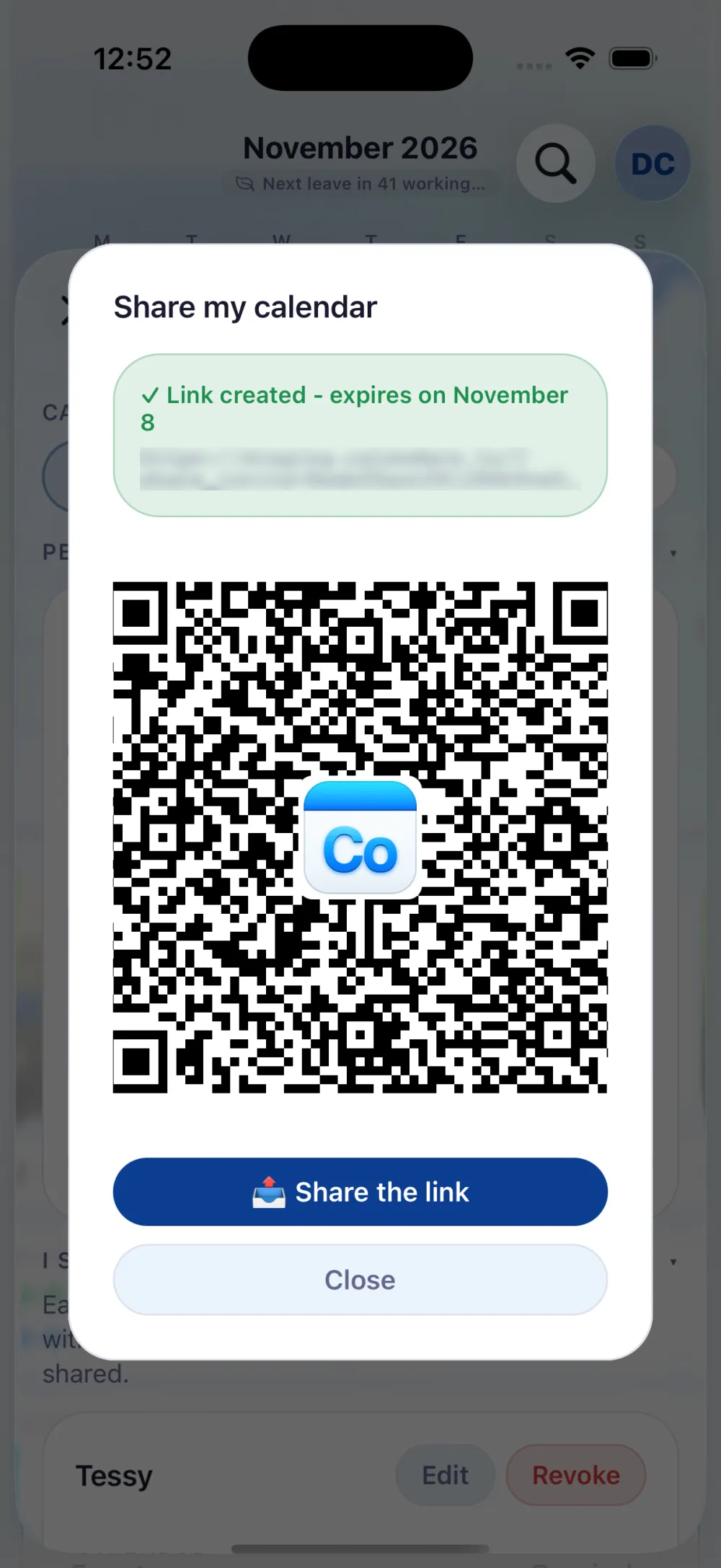
Share your plans in 2 seconds - with a contact, by QR code, or as an image by SMS. See in pictures →
Can I show my other calendars (iCloud, Google, Outlook)?
Yes, read-only, from My account then "Calendars and sharing". Two routes: "Device calendar" picks up the calendars already on the phone (iCloud, Google, Outlook, Birthdays), and an iCal subscription lets you add a calendar by its address. Your own events stay separate from theirs.
Can I have several calendars, and see them in another app?
Yes. Every event and reminder belongs to a calendar, as in Apple’s Calendar app. Your existing items are in “Co Agendas - Personal”. In My account > Calendars and sharing > “My Co Agendas calendars”, create more and pick their name and colour: their name always starts with “Co Agendas - ”. You choose an event’s or reminder’s calendar in its form. Unticking a calendar hides it on this device without deleting anything; deleting one moves its items to “Personal”. With the Plus plan, each calendar’s chevron offers “View in another app”: the calendar shows read-only in Apple Calendar, Google Calendar or Outlook (items marked “Do not share” never leave the app). In the sharing window, the first row is a “Shared calendar” drop-down: one share = one calendar, with its own options. To share another calendar with the same person, make another share and pick another calendar (the one already shared is greyed out). Each card in “I share with” shows the calendar it displays. A new calendar is never shared automatically.
What is the default calendar called?
“Co Agendas - Personal”. It is created automatically with your account: your events and reminders go into it unless you pick another calendar in their form, and it is the one a share offers first. You can rename it in My account > Calendars and sharing > “My Co Agendas calendars”, but not delete it.
Do birthdays show in the calendar?
Yes. Your phone’s “Birthdays” calendar connects like any other from “Calendars and sharing”. You can also create an event of the “Birthday” type: it repeats automatically every year, and if you enter the “Year of birth”, the age is shown.
Can I share my calendar ?
Yes, one-way: share your calendar and events with one or more contacts at once, or by link or QR code. The recipient accepts, and you stay in control of what they see. You can cancel a share at any time. You choose what they see: your statuses, your events and your reminders. For statuses as for events, “Show details”: when off, they only see “Unavailable” instead of your statuses and “Busy” time slots instead of your events. A specific event can also be set to “Show as busy” in its form. A crossed-out eye then marks it on its block in the calendar, under the title, next to the participants. (Plus plan to share your calendar; receiving a share is free.)
Can I share without the other person having the app ?
Yes: in the Sharing page, “Share a month” sends the calendar of the chosen month as text with emojis (leave, remote work, days with events), by message, email or any other app. The person does not need the app. (Plus plan.)
How do I manage my contacts ?
An address book is built in: add contacts by hand or import them from your phone, sort them into groups, and choose who to share with. You see who is already on Co Agendas and who has a pending invitation.
Do the people I share my calendar with see my events that have guests?
Yes, by default. Inviting people to an event or reminder does not remove it from your calendar shares: the people you share your calendar with see it like your other items, according to what you share with them. To hide it from them, turn on “Do not share” in its form: it is then hidden from your shared calendars and from the iCal feed. This does not remove its guests: the people you invited by name to this event keep it, and you can invite contacts to a private event. A reminder also keeps the people who follow it.
Can I invite a whole group of contacts at once?
Yes. In an event, the “Invite to follow” button is in the “Participants” section, to the right of the button for adding from the phone’s address book; in a reminder, between the bell and the tick. It opens a menu just below showing your contact groups and your contacts: tapping a group invites everyone at once, and a second tap on the same group removes them all - the chip is coloured and carries a tick while the whole group is invited; tapping a contact adds or removes them. A counter shows where you stand, for example “3 / 6”. Six people maximum: beyond that the menu says so, and if a group does not fit entirely it adds what fits and tells you.
Can I invite someone to follow a reminder?
Yes. The share button, next to the bell, opens “Invite to follow”.
WHOEVER ACCEPTS FOLLOWS THE REMINDER, and nothing more: they cannot edit it or invite anyone else. The reminder appears in the “Reminders” list of the day concerned, with an eye showing that it belongs to someone else.
A TAP OPENS IT READ-ONLY, with a banner saying whose it is: “Tessy’s reminder”, “Read-only”. They see the text, the colour, the date, the time, the urgent alarm and the notification times, without being able to change anything. The repetition, the “done” state and the photos are not passed on: a repeating reminder only appears for them on its first date.
AND EVERYONE SETS THEIR OWN NOTIFICATIONS. The bell at the end of the row opens their own reminders for that item. They start with yours, then change them as they like - switch off the urgent alarm, remove a reminder, add one; a “Back to the original setting” link clears their override. Nothing changes for the others, and nobody is told.
AN ITEM FROM A SHARED CALENDAR opens the same way, and shows in ALL views: Month, Week, Day, Agenda, the landscape week and the day sheet.
Can I be notified about JUST ONE item from a shared calendar?
Yes, item by item - without touching the general setting.
THERE ARE TWO LEVELS. The GENERAL sharing setting is in the Sharing page, under “Calendars shared with me”: “Notify me of their calendar” (Plus plan) decides what is announced (their statuses, their events, their reminders) and when - the day before at the time you choose, the same day, or at the very same times as that person.
THE OVERRIDE IS ON THE ITEM. The bell at the end of a received reminder’s or appointment’s row opens your own lead times (“15 min”, “1h”, “1d”...) and the urgent alarm, for that item alone. It is also in its sheet when you open it.
A SENTENCE ALWAYS STATES WHAT APPLIES as long as you have touched nothing - “Sharing setting: the day before at 09:00”, “like Tessy”, or “no notification”: so you never override blindly.
AND THE OVERRIDE REPLACES THE RULE, it does not add to it: an item set separately is no longer announced by the daily summary. Unticking everything is a choice that is respected - “that one, I don’t want to be told about” - and the “Back to the original setting” link cancels it.
IT APPLIES EVEN IF THE SHARE IS SILENT: you may want no notification at all from someone’s calendar and still ask to be told about a single appointment.
NOBODY IS TOLD, AND IT NEVER LEAVES YOUR PHONE: this setting lives on the device, and the owner cannot see that you muted their alarm.
WHERE THE BELL IS: at the end of a received reminder’s row, at the top right of a received appointment’s block on the hourly grid (the panel then opens under the grid, with the appointment’s name at the top), and in the item’s sheet if you open it. Only one panel stays open at a time.
AND THE URGENT ALARM CANNOT BE TICKED WITHOUT A NOTIFICATION: “Urgent” does not say THAT you are notified, it says HOW - the notification gets through Focus modes. With no lead time ticked it has nothing to make urgent: it becomes inert, and a sentence under it says so. Unticking the last lead time switches it off by itself.
If I turn off the alarm on a shared reminder, do the others lose it too?
No. Notifications are PERSONAL, and they stay that way.
The urgent alarm and the alerts (“30 min”, “1d”...) are set at creation by whoever creates the item, but for a reminder you follow and for any item from a calendar shared with you, that is only a starting point: the bell lets you switch the alarm off, remove an alert or add one. It changes nothing for the others, and nobody is told - it is not a change to the item, it is your setting.
FOR AN EVENT YOU ARE INVITED TO, you receive the notifications chosen by the organiser, without being able to change them item by item.
EVERYTHING ELSE, HOWEVER, IS PROPAGATED: the time, the date, the place, the title, the meeting link, the description or the recurrence. Those changes concern the appointment itself, so guests get a notification saying what changed.
Can I remove an invitation from my list?
Yes, but only an invitation you have DECLINED. In the “Invitations” sheet, Answers tab, a declined row carries “Remove from my list”.
WHAT IT DOES AND DOES NOT DO: you clear YOUR list, not the organiser's. They still see that you declined - that is their information, and taking it away without their knowing would not be right.
BEWARE, THE WAY BACK GOES WITH IT: while a declined invitation stays in the list, you can change your mind - that is in fact the most common case after a quick decline from the lock screen. Once removed, only the organiser can invite you again, and their new invitation brings it back.
A PENDING INVITATION CANNOT BE REMOVED. Otherwise the organiser would wait indefinitely for someone who no longer knows they were invited. Answer first.
AND IF THE ORGANISER DELETES THE APPOINTMENT, it disappears from your invitations sheet by itself: there is nothing left to accept or decline.
What happens if two people edit the same event?
That cannot happen: only the organiser can edit an event. Invited people see it read-only, can neither edit it nor invite anyone else, and the organiser can remove a participant at any time. If you leave the form of an event with participants open for five minutes without changing anything, it closes without saving anything.
The person I invited says they received nothing: why?
You can invite people to an event as well as to a reminder, and the invitation goes out when you save. If they say they received nothing, two things almost always explain it.
ARE THEY IN YOUR CONTACTS? An invitation arrives as a NOTIFICATION only if the person has a Co Agendas account and is in your contacts. That is deliberate: ringing the phone of someone who has never been in touch with you would be a nuisance channel. Without that link the invitation still goes out, but by e-mail - which can land in spam.
IS THEIR ADDRESS VERIFIED? Until an account has confirmed its address, invitations addressed to it by e-mail alone do not appear in its “Invitations” list in the app. That is a safeguard: without it, signing up with someone else's address would give access to their invitations. They still receive the e-mail and can answer from the link.
How does my QR code work ?
Your QR code is your business card: it never changes and simply says “this is me”. To display it, open My Account > My details > My QR code; the share button at the top right sends it by message along with the link that comes with it. To add someone, open My contacts and tap the QR button: the camera opens, you frame the code of the person in front of you, and the app offers to add them. The “My code” button at the bottom of that screen switches to your own. Note: a QR code is scanned, it shares nothing on its own. Adding someone to your contacts gives them no access to your calendar; sharing is decided afterwards, with its own settings. Finally, if your code has been passed around and you no longer want that, “Reset QR code” creates a new one: the old one stops working immediately, and people already added stay in your contacts.
Pricing & subscription
Which plans exist and how much do they cost ?
A complete Free plan, and one paid plan: Plus, which unlocks every feature and is taken per person, for you alone or for the people close to you (up to 6 people, you included). It is taken monthly or yearly, with the first month free. On the website: 27,99 € for the first person, then 12,99 € for each additional person; in the app: 29,99 €, then 14,99 €. Monthly: 2,99 € then 1,49 € on the website, 3,49 € then 1,69 € in the app. For more than 6 people, contact us. The current amounts are on the Pricing page, which is authoritative.
How do I subscribe and cancel ?
You can subscribe in the app, via Apple’s App Store (and Google Play later), or on the coagendas.com website. A subscription taken out in the app is cancelled from the subscription settings of your Apple or Google account; a subscription taken out on the website is managed from My Account > Subscription > “Get the management link by email”. The plan stays active until the end of the paid period, then you return to Free without losing your data.
How much storage space do I have ?
Free: 50 MB of photos per user. Paid plans: 1 GB. Only photos count towards this quota; your events, absences and settings are not subject to it. If you exceed it after returning to Free, a 30-day grace period applies (with reminder e-mails and export available) before any deletion of the oldest excess photos.
Can I get a refund ?
For a subscription taken out in the app, the refund is requested from Apple, under Apple’s terms: in My Account > Subscription, tap “Request a refund”. For a subscription taken out on coagendas.com, the first month is free and you can cancel during that month without paying anything. The 14-day withdrawal period starts on the date of subscription and therefore ends during the free month: once a payment has been taken, it is not refunded (see our terms and conditions). Remember to cancel before the end of the trial if you do not wish to continue.
Privacy & account
Is my data safe ?
Yes. Exchanges with our servers are encrypted (HTTPS), hosting is in Europe, and your data is neither sold nor passed on to third parties for advertising purposes. The app is ad-free and does not train any AI model with your data.
Who can see my data ?
By default, nobody but you. Your events, reminders and absences only become visible if you share them yourself: sharing your calendar (with a contact, or by link or QR code, choosing what you share), an invitation to follow an event or a reminder, or an event’s share link. An item marked “Do not share” never appears in the calendars you share.
How do I export or delete my account ?
In My Account > My data. Under “Personal data (GDPR)”, “Export my data” produces a file of all your data except photos (GDPR art. 20); your photos are exported from My Account > Storage > “View and manage all my documents”. The “Delete my account” button permanently erases your account and your data from our servers (GDPR art. 17); only a few records remain, for a limited time stated in the privacy policy (security logs, free-trial fingerprints). Please note: deleting your account does not cancel your subscription, so cancel it first. See also the privacy policy.
Events, tags & reminders
How do I create an event ?
Tap the + button then “New event”, or tap a day on the calendar. Enter the title, time and place, and choose a tag: its colour becomes the event’s colour. You can make it recurring, span several days, ephemeral (it goes to the trash once past, recoverable for 30 days) or keep it out of your shares with “Do not share”.
What are event tags ?
Colour labels. Personal, Work and Family are provided; with the Plus plan, you can rename them, change their colour and create others (My Account > Events). The tag’s colour becomes the event’s colour. To filter the calendar by tag, tap “Event” in the legend, then the tag you want.
How do I find an event or a date ?
Tap the magnifying glass at the top of the screen and type a word from the title: the search covers your events, your statuses, public holidays and the calendars shared with you. The calendar legend also acts as a filter: tap an item (event, status, zone, tag) to highlight only the relevant days.
How do I organise the Search page?
The Search tab shows blocks before you even type, like the Photos app: “Recently viewed” (the events you opened), “Coming up” (events and reminders in the next 14 days) and “Browse”. The “…” button at the top right, next to your profile, sets the size of the tiles, shows or condenses all the blocks, and “Reorder” lets you move them up or down. The round button next to each title folds or unfolds the block. These settings stay on your device.
How do reminders work ?
Each event can trigger a notification before it is due; tapping it opens the relevant day directly. The reminder timings are customizable, and you turn notifications on or off whenever you want.
Can I choose the sound of a reminder?
Yes, for events and reminders marked urgent. In their sheet, turn on the “Urgent” switch (at least one notification must be chosen): an “Alert sound” section appears right below. Tap it to expand it: besides the default sound, eight sounds are offered. Tap one to hear it and pick it in the same gesture. Without “Urgent”, there is no sound to set.
How can I be sure not to miss an important appointment?
In the sheet of an event or a reminder, turn on “Urgent” (at least one notification must be chosen). On an iPhone running iOS 26 or later, an alarm then rings at the set time, even on silent, and can be snoozed; on earlier versions, the notification gets through even when a Focus is on. Keep this setting for what really matters - otherwise everything becomes urgent, and nothing is.
Shortcuts, widgets & watch
Can I start a search without opening the app?
Yes. Your upcoming appointments (up to 180 days ahead) appear in iPhone search: swipe down on the home screen, type a word from the title, and tap the result to open Co Agendas right on it. Events marked “Do not share” never appear there. Another shortcut: press and hold the Co Agendas icon to bring up four shortcuts - AI assistant, Public transport, Today and Report a problem - which open the app straight on the screen you want.
Are there widgets?
Yes, with the Plus plan. Two home screen widgets, “Today's agenda” and “Next trains”, in medium or large size (extra large on iPad), and three lock screen widgets: “Next appointment”, “Event in progress” and “Next departure”. To add one: touch and hold an empty area of the home screen, tap “Edit” then “Add Widget”, and choose Co Agendas. In large size, the agenda shows the month on top and the day below: tapping a date changes the panel without opening the app, the chevrons page through the months, and you can set your status or join a video call straight from the widget. In medium size, it shows the day only.
Is there an Apple Watch app?
Yes, with the Plus plan. It installs with the iPhone app; open Co Agendas once on the iPhone to sync it. On your wrist: your next events and reminders in a single list sorted by time, the month (paged with the Digital Crown), your status for the day, which you can change, and the next departures for your saved journey. You can also move an appointment’s time in 5-minute steps without taking out your phone.
Can I talk to the AI assistant from my Apple Watch?
Yes, with the next update: your AI assistant, right on your wrist. Tap “Assistant” at the bottom of the watch, dictate one sentence, or tap a ready-made question (“My requests”, “Recent”), and the answer appears on your wrist - for a train: the time, the line and the arrival. One sentence, one answer: for a conversation, open the assistant on your iPhone. The question goes through your iPhone, which must be nearby, and the exchange is saved in the assistant’s history. Also coming to the wrist: “My journeys” (your favourite and recent journeys, with live departures) and all the app’s transport modes, including Metro and Direct. With the Plus plan.
I was offered a free trial: what happens?
Your account switches to the Plus plan for the period offered, without a bank card. A banner at the top of the calendar shows each day how many days are left (its cross hides it until the next day), and My Account > Subscription gives the end date. At the end, your account returns on its own to its previous plan, with no charge and without losing anything. To keep it, choose your subscription in My Account > Subscription.
What are the cards at the top of the calendar, and how do I close them?
The team sometimes shows news, tips or offers there, with a photo, a video (muted, started with a tap) or buttons. The small cross at the top right closes a card; some important notices have none. The two offer cards for free accounts change every day, and their cross hides them for the day. These cards never touch your calendar.
What shows on the Lock Screen?
The train you are following appears there live: arrival time, next stop and platform number update by themselves, on the iPhone and in the Apple Watch Smart Stack. An appointment appears there up to one hour before it starts, with a countdown to the start, then to the end. It clears itself after the end, according to the delay chosen in My Account > Events > “Clear after it ends” (10 minutes by default).
Why do widgets and the watch react more slowly than the app?
A widget is a separate little program: iOS only runs it for a few seconds, and it has no session or connection. Tapping the tick, “−” or “+” therefore leaves a request, which the app applies the next time it opens (a request more than 24 hours old is ignored). The watch asks the iPhone instead, which takes from a few seconds to several minutes. Meanwhile the requested time shows straight away, and a ticked reminder is struck through in the widget and fades on the watch; the real value follows. To force everything through, open the app and keep the iPhone within reach of the watch.
What is the “Your day” notification?
If you turn this option on, a notification arrives every morning at the time you choose (6:30, 7:00, 7:30 or 8:00 am): it sums up your day and attaches the picture of your hourly agenda, reminders included. Press and hold the notification to expand it. Setting: My Account, then “Morning summary” (off by default). Once the option is on, the “Send a test now” button shows it to you right away. No data leaves your phone.
Can I tick off a reminder or shift a time from a widget, the watch or the lock screen?
Partly, since version 1.2.1 and with the Plus plan. In the “Today's agenda” widget and on the Apple Watch, every reminder has a tick, and every reminder or event with a time has a “−” and a “+” (5 minutes per tap); a ticked reminder then only offers to be unticked. On the lock screen, nothing can be ticked or shifted: an ongoing event shows a progress bar there, as it does in the Dynamic Island, in the “Event in progress” lock screen widget and on the watch. Up to four lock screen banners can show at once, journeys and events together. A widget acts with a short delay: see “Why do widgets and the watch react more slowly than the app?”.
Can I choose whether an appointment shows a banner on the Lock Screen, and do my invitees see it?
Yes, event by event. In the event form, the “Appointment banner” switch is on by default: the banner appears on the Lock Screen and on the Apple Watch at the earliest one hour before the start, with a countdown, then disappears after the end. Turn it off and save: this appointment no longer has a banner, neither for you nor for your invitees. Your invitees see it too as soon as they have accepted the invitation; as long as they have not replied, or if they replied “Maybe” or declined, nothing appears for them. Did you close the banner by hand? Turn the switch off and then on again in the event form, saving each time: it comes back as for a new event.
1. You invite Lynn and leave “Appointment banner” on.2. Lynn accepts the invitation.3. The banner appears on her Lock Screen, as on yours.
Subscription & cancellation
How do I cancel my subscription?
It depends where you paid. In the app (App Store): your iPhone Settings → your name → Subscriptions → Co Agendas → Cancel subscription; in the app, My Account → Subscription → “Manage subscription” opens that page directly. On the website: in the app, My Account → Subscription → “Get the management link by email”. The link arrives at your account address and opens your secure billing area: cancel in one click, change your card, and find your invoices. Without the app, write to us at [email protected].
Do I get a refund if I cancel mid-year?
No - this is exactly the App Store rule: your subscription stays fully active until the end of the period you already paid for, then it does not renew. There is no pro-rata refund. That is also why the trial lasts 30 days: you get a full month to decide before the first payment.
What if I paid by mistake?
The first month is free: you can cancel at any time during that month without being charged anything. The 14 day withdrawal period starts on the date of subscription, so during that free month: once a payment has been taken on the website, it is not refunded (see our terms and conditions). So remember to cancel before the end of the trial if you do not wish to continue. For a purchase made on the App Store, Apple handles its own refunds: My Account → Subscription → “Request a refund” opens the request to Apple.
What happens when the free month ends?
On the 30th day, the subscription starts and the first payment is taken for the period you chose: one month or one year in the app, one year on the website. If you cancel before the trial ends, you are charged nothing: access stays complete until the last free day, then stops. You can cancel from day one without losing your free month.
Can I get the free month or the 7 free days again?
No, each free trial is given only once. The 7 days offered at sign-up are linked to your e-mail address and to your Apple or Google account; the free month on the website, to your address and your bank card; in the app, Apple and Google apply their own rule. Deleting your account and creating a new one therefore does not restart a trial. And nothing is ever charged without your agreement: if a card has already had the free month, the subscription is not activated, nothing is debited and we e-mail you. A new request then starts without a trial, and the payment page shows the amount before you confirm.
Can I change plan during my subscription?
Yes. You can add people to your Plus subscription, or remove some. The cases: • Adding people: takes effect immediately, and you only pay the difference for the current period. • Removing people: takes effect at the end of the period already paid, without a refund. Nobody is removed automatically: you choose who keeps their place. • During the free month: the trial continues. It neither stops nor restarts; the free month is given only once. Where to do it: subscribed in the app → My Account → Subscription, or your iPhone Settings → your name → Subscriptions → Co Agendas. Subscribed on the website → in the app, My Account → Subscription → “Receive the management link by email”, then the link you receive.
Troubleshooting
I am not receiving notifications.
Check that notifications are allowed for Co Agendas in your device settings, then that they are enabled in My account. If the problem persists, sign out and back in to re-activate the device.
A notification still shows the old icon or the old name: why?
After the update to Co Agendas (formerly Calendars.lu), or when the festive icon changes, the iPhone may keep the old image in notifications for a while. This is iOS memory, not an app setting, and your data is not affected. Restart the iPhone: notifications show the right icon and name again.
Can I be warned when it freezes?
Yes. Turn on “Frost alerts” in My account > Morning summary (it is off by default). For each freezing day in the next four days, the app schedules up to three alerts on your phone: the evening before at 8 pm (“Frost tonight”, with the minimum temperature), in the morning at 6:30 am (“It’s freezing this morning”, black ice possible) and at noon if the day’s high stays at 0° or below. Everything is worked out on your phone, from the forecast for your location. Open the app at least once a day: that is what keeps the alerts up to date.
What are the tips scrolling in the bottom bar?
Every day, the bottom bar adds a feature to discover at the end of its scroll: frost alerts, morning summary, sharing a journey, the maps’ 3D button, disruptions in itineraries, calendar sharing. It changes every day (never the same twice in a row) and a tap opens the place it talks about. It never touches your calendar.
How do I find a stop near me?
In the Day and Month views, the “Find a stop nearby” block is the first one in the scrolling blocks. Tap it: it opens full screen, with the map and the bus, train and tram stops around you, sorted by distance and with their lines in colour. Pick your departure stop: the journey search opens with that departure, so you only have to choose the destination. The block only appears if location is turned on (My Account > Location); its cross hides it until the next time you open the app.
How do I know when to leave for an appointment?
In an upcoming event with a place and a time, the “How to get there” section shows, from your location, public transport, car (with expected traffic), bike and walking: for each, the duration and the time to leave to arrive on time, with advice when it helps (umbrella, black ice, “it’s far”). Tap a mode: it is chosen and the “Time to leave…” reminder is set, with the mode’s icon. When you expand it, “Remind me before departure” sets how many minutes before the departure time the reminder rings. You can change the mode later, from the event or from the reminder itself: the time is recalculated. The travel time is calculated on the day you save the reminder, then kept as is: by car and public transport it can change by the day of your appointment (traffic, roadworks, timetables); on foot and by bike, rain or snow can slow you down too.
And without a connection, can I still see my times?
Yes. The next departures you have already looked at stay on the phone for 24 hours. Without a connection (in a tunnel, on a plane), the app shows them with the note “Offline - last times received at …”, without the trains that have already left. As soon as the connection is back, live times resume.
How do I switch a map to satellite view?
On full-size maps (an event’s place, a journey, stops around you), the round button with two layers, at the bottom right, opens the map settings: Standard, Hybrid (photo with street names) or Satellite, each with a preview. Your choice is kept for the next maps.
Is the departure reminder shared?
It follows its appointment. If the event is “Do not share” or “Show as busy”, its departure reminder is not shared either; if the event is shared, the reminder is too, in the same calendar. Change the sharing on the event: the reminder follows on its own, and its sheet says so (“Shared like its event”).
What happens if I miss a tight connection?
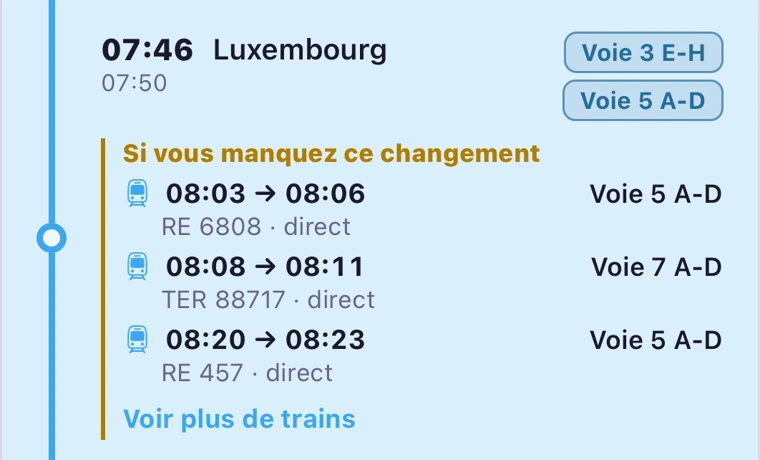
When a change leaves less than 5 minutes, the journey details show the next trains from that station directly under it: departure, arrival, line, number of changes and departure platform when it is known. “More trains” adds others. If a delay makes you miss the change, the list is titled “Next trains” and only keeps the trains you can still catch. No new search needed.
What is a group calendar?
A calendar shared by several people (family, friends, a club, a team), managed by its owner. Create it in My account > Calendars and sharing > “Create a group calendar”: a name, a colour and, if you like, a photo that every member will see. Then invite each member by email address or from your contacts, as “View only” or “View and add their own events”. Everyone only edits their own events; the owner manages members, the photo and the name. To add an event or reminder to the group, pick the group in the “Calendar” row of its form. The group has its own day card at the top of the calendar, with its photo, and each member has a block in the hourly agenda. An item of the group never goes out through your personal shares. (Creating a group: Family plan; joining is free.)
How do polls in a group calendar work?
A member who can add events opens the group > “Polls” > “Create a poll”: a question, 2 to 5 choices, a photo and a colour if you like, one or more answers allowed and an optional deadline. “Not taking part” is always offered. The poll stays a draft, visible only to its author, until it is sent: each member then gets a notification with “Answer” or “Not taking part”. Everyone can change their vote until it closes. The author can edit it (members are notified), remind those who have not answered, and stop it early by sending the results as a picture, with names or anonymously. A closed poll stays visible in the group with its results. Each choice can carry a photo (“Which is the best photo?”), and a photo opens full screen so you can save it. A deleted poll, or one closed for 30 days, moves to My account > Trash > Polls, where it stays 90 days.
How do a group’s task and shopping lists work?
In the calendar, below the group’s card, tap “Tasks” or “Shopping” (or My account > Calendars and sharing > the group > Lists). A task can have subtasks, a note, a link (a video for example), a photo and comments. In “Who takes care of it?”, ask a member: the app suggests whoever has the least to do; they accept or decline, saying why, and the whole group is told. A shopping list is arranged by shop (with its photo) and, if you like, by aisle: each item is sorted automatically from its name. Take a photo of the receipt: the amount, date and shop are read automatically, and the app offers to tick the items found on it. “Scan a paper list” turns a written list or a recipe into items, after a preview. A deleted list stays 30 days in the trash in My account.
How do I fill in and share my timetable (weeks A, B, C)?
Below the group’s card, tap “Timetables”, then “My timetable” and “Add a slot”: a title, a place, the day and the hours (drag the two circles). In Settings, choose “All the same”, “A / B” or “A / B / C”, then say which week is the current one: the app works out the next ones, and each slot can take place only in some weeks. “Copy one week to another” saves typing everything again. Nothing is shared by default: the “Share in…” switch shows it to the members of that group, group by group. Tap a day at the top of the grid to see its details.
Where can I quickly find the group’s tasks, shopping and polls?
At the top of the calendar, swipe the day card to the group’s card: below it, five circles open Tasks, Shopping, Polls, Timetables and “Where are they?”. A red badge shows what is waiting for your reply, a grey one a simple count (items to buy, for example). The “+” button in the bottom bar also offers “Shopping”, “Receipt” (the scan goes straight to the group’s shopping list) and “Poll”. Deleted items (polls, lists) are in My account > Trash.
Day cards: how do I show, hide or reorder them, and choose the timetables?
The day cards are the large cards at the top of the calendar: My calendar, one card per group calendar, one per person who shares their calendar with you, and each group’s Timetables card. Swipe left or right to move from one to the next.
Show, hide and reorder the cards
Tap your initial at the top right (My account), then Calendars and sharing.
Scroll down to Day cards: one row per card.
The switch shows or hides the card.
To reorder them: press and hold the three lines on the right of the row, then drag it into place (or tap the up and down arrows). The top row is the first card in the calendar.
Add or remove a timetable from the “Timetables” card
From the card: tap the Choose button at the bottom of the card. Tick the timetables to show, untick the others, then tap OK.
From My account: Calendars and sharing, Timetables in the cards section. One switch per timetable to add or remove it, and the three lines to set their order in the card.
By default, every card and every timetable is shown. The “Timetables” card only appears on days when a chosen timetable has at least one slot. These settings change nothing for the other members.
How do I message my family or talk about an event?
Each group calendar has its own conversation: tap the Messages circle under the group’s card, or open the group in Calendars & sharing → Messages. Every group member can write, with text and photos; a red badge counts what you haven’t read.
Every event filed in a group, or with guests, also has its discussion: long-press the event → Discussion. The organizer, the group members who see the event and the guests with a Co Agendas account take part. Writing in messaging is part of the Plus subscription; with the free plan you can read messages but not reply. A guest who hasn’t accepted yet can read the discussion without writing.
How do I address someone in the group conversation?
Type “@” in the message bar: the list of group members appears just above it, and the letters you type next filter it. Tap a first name to insert it (“@Léa”). The message stays visible to the whole group: the mention lets you address someone in particular, it does not open a private conversation. In the bubbles, a mention at the start of a message is shown as a “@ Léa” tag at the top of the bubble, and the person mentioned gets a notification saying so: “Leila mentioned you”.
Disappearing messages, reporting, blocking: how does it work?
Disappearing: settings button at the top right of the conversation → Disappearing messages: off, 24 hours, 7 days or 90 days. The setting applies to everyone and to the following messages. At the set time, the message and its photo are deleted from our servers; the notification stays neutral (“New message”). A screenshot is still possible: the phone doesn’t prevent it.
Report and block: long-press a message → Report (our team reviews it within 24 hours; a reported message is kept for moderation, even if it disappears) or Block (their messages and notifications no longer reach you). Unblock in the conversation settings.
Retention: a message stays as long as the conversation exists, unless its author deletes it. A group conversation disappears with the group; an event discussion with the event, or 12 months after its last message. Your messages are included in your data export.
Why does the app ask me questions the first time I open it?
To show you first what will be useful to you. The “For you” page of the welcome guide asks three questions, each with its reason: do you live alone, as a couple or as a family; how do you get around; what matters most to you. Your answers stay on your account and are shown to no one, and nothing is mandatory (“Skip”). The same page offers “Your reminders”: “Notify me” asks for notification permission, “Later” asks nothing. The app no longer asks for it on its own when you sign in.
Do the morning summary and the frost alert come with a picture?
Yes, on iPhone and iPad. The morning summary attaches a picture with, at the top, today’s weather as the app shows it (conditions, high and low, and “Frost” when it freezes), then your hourly agenda. Frost alerts (the evening before at 8 pm, the morning at 6:30) attach the weather excerpt for that day. Touch and hold the notification to see it large. Both are set in My Account → My day → Morning summary, where a preview shows each notification as it arrives. Everything is made on the phone.
Where do I find a setting in My Account?
My Account is organised in five families: Account (details, subscription, storage, statistics, my data), My day (countries, leave, statuses, events, reminders, morning summary, trash), Family and sharing (calendars and sharing), Appearance (theme, text, halo, page turning, glass, Apple Watch and language) and Help. “Learn”, the step-by-step guides, is at the very top. Settings that don’t explain themselves show a small picture of what they change. On a page, the arrow on the left goes back to the list and the cross on the right closes everything.
Can I get tomorrow’s weather every evening?
Yes. My Account → My day → Morning summary → “Tomorrow’s weather, in the evening”: choose 7, 8 or 9 pm. Every evening, a notification shows tomorrow’s weather as a picture, with its high and low. When a warning is needed, the title says so: possible black ice, snow, storms or heavy rain, with a tip. A tap opens the app’s weather straight on tomorrow. Everything is calculated on your phone.
How do I send a precise route to someone?
In Transport, choose a route, then tap “Share” (under “Track this journey”). In the “The route” tab, tap “Send” next to a Co Agendas contact: they get a notification that opens this trip in their app. For anyone else, “Another way (Messages, WhatsApp, email...)” sends the route written step by step (time, station, platform, line, arrival), the duration and a link to Co Agendas. The “My arrival, live” tab lets them follow your arrival in real time instead.
How do I find a bus near someone who shares their location?
Tap their location card in the calendar: “Around <name>” opens, with the stops near them. The map is a photo to save battery; tap it to open it full size, and the arrow centres it on them. Tap a stop: it becomes your destination in Transport. Choose your departure and a route, then “Send this route” to send it to them.
Where do I manage a location share in progress?
While a location share is active, yours or a loved one’s, the “Location in progress” section appears at the very top of My Account (tap your profile). For yours: “Extend” adds 15 min, 30 min or 1 h to the end time (12 h at most), and “Stop sharing” ends it at once. For a loved one’s: tap their name to see them on the map. The section disappears as soon as no share is in progress.
What are the app’s new gestures?
Calendar cards slide sideways: the one you’re looking at comes forward, the others step back. A long press on “Nothing planned” in a group calendar creates an event in that group. The arrow next to an event or reminder moves it to the next day. In a shopping list, tap an item’s photo to enlarge it (pinch to zoom, swipe down to close), and drag the lines of a scanned list onto a shop. The “…” buttons open menus: list, shop, poll, member, timetable. In landscape, the month view shows two months. Every notification has an “OK” button to dismiss it.
How do I change day, month or year?
Just like Apple’s Calendar. Month view: swipe the grid up or down for the next or previous month; swipe the day’s cards up and the whole screen moves up (the left button and your round avatar fade away and come back when you scroll down). Year view: swipe the twelve-month grid up or down to change year; tap a month to open it. Day view: swipe sideways, or tap the arrows on either side of the date. Week view: the floating round button at the bottom right opens Today, the legend and the other views. Tap the Co Agendas tab to go back to today. The magnifying glass on the right of the bottom bar opens search and its shortcuts (Today, This week, Reminders, Leave…).
Syncing is not working.
Make sure you are signed in to the same account on your devices and have an Internet connection. Data re-syncs automatically; if in doubt, close and reopen the app.
How do I contact support ?
Use the contact form, describing your problem and your device model. You receive a tracking number and a reply within 24 to 48 working hours.
No question matches your search. Contact us directly.
Can't find your answer ?
Our team replies to you directly, with a tracking number.